I built a CLI to archive Umbraco Cloud projects
I recently finished upgrading a client from Umbraco 8 all the way to Umbraco 17. Because of the switch from old ASP.net Framework in Umbraco 8 to the modern ASP.net Core in Umbraco 17, the only path was a fresh build on a brand new Umbraco Cloud project. Once the v17 site was live, the old v8 Cloud project had to go.
Before clicking that scary “delete project” button, I wanted a safety net. Not just a SQL backup, but everything: the full git history, the media blobs, and the database. Future me might want to dig something up - a content snippet, a piece of code, an asset I forgot we had - and “we deleted it” is a terrible answer.
So I built a small CLI to do exactly that, and published it to npm: umbraco-cloud-archiver.
What “archive” actually means
A Cloud project has three things worth keeping, and each has its own quirk:
- Git repository - Cloud gives you a git remote per environment. You want both a
--mirrorclone (full history, all branches, all tags) and a working copy you can actually browse without git commands. - Blob storage - The media files live in Azure Blob Storage. You can grab them with a container-level SAS URL from the Cloud portal.
- Database - The trickiest one. You can either export a
.bacpacwithsqlpackageif you have SQL credentials, or download the latest backup manually from the Cloud portal.
Doing all of that by hand, for live, stage, and dev, is the kind of repetitive task I’d rather automate once than do carefully three times.
Introducing umbraco-cloud-archiver
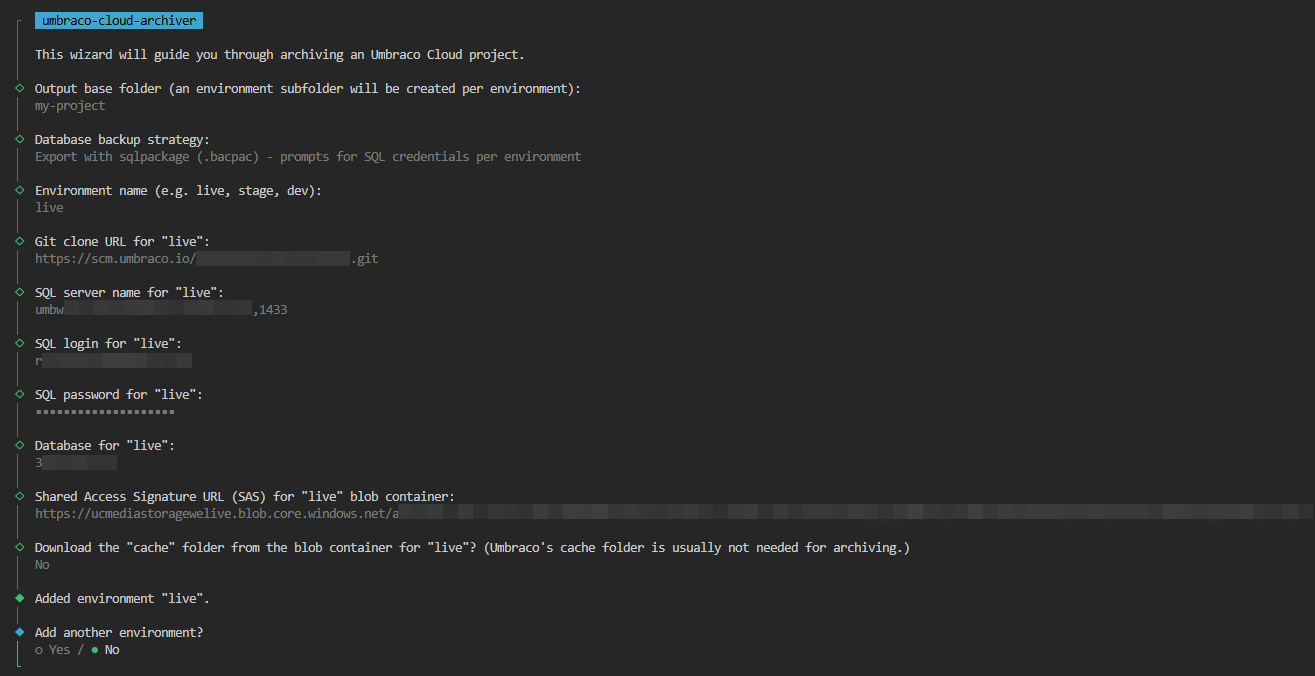
It’s a wizard-based CLI. One command, no flags to remember:
npx umbraco-cloud-archiver@latestIt walks you through the archive step by step, asks for the bits it needs, and dumps everything into a tidy folder structure on disk.
How to use it
The wizard has four phases:
- Pick an output base folder. Everything ends up here, one subfolder per environment.
- Choose database backup mode. Either skip the DB entirely, or use
sqlpackageto export a.bacpac. If you skip, the tool drops aMANUAL_BACKUP_REQUIRED.txtreminder so you don’t forget to grab it from the portal. - Add environments one by one. For each environment you give it a name (
live,stage,dev), the git clone URL, the blob storage SAS URL, and optionally DB credentials. After each one it asks “add another?” until you’re done. - Confirm and run. It prints a summary, you confirm, and it gets to work.
Tip: You can find the SQL connection details and container-level SAS URL in the Umbraco Cloud portal under the environment’s Configuration section, on the Connections page. Remember to whitelist your IP address in the SQL server’s firewall settings before running the wizard. This is done on the Connections page too. The git clone URL is on the environment overview page.
If azcopy or sqlpackage aren’t on your PATH, the tool offers to download them into a per-user cache (~/.umbraco-cloud-archiver/bin/) so you don’t have to install anything globally.
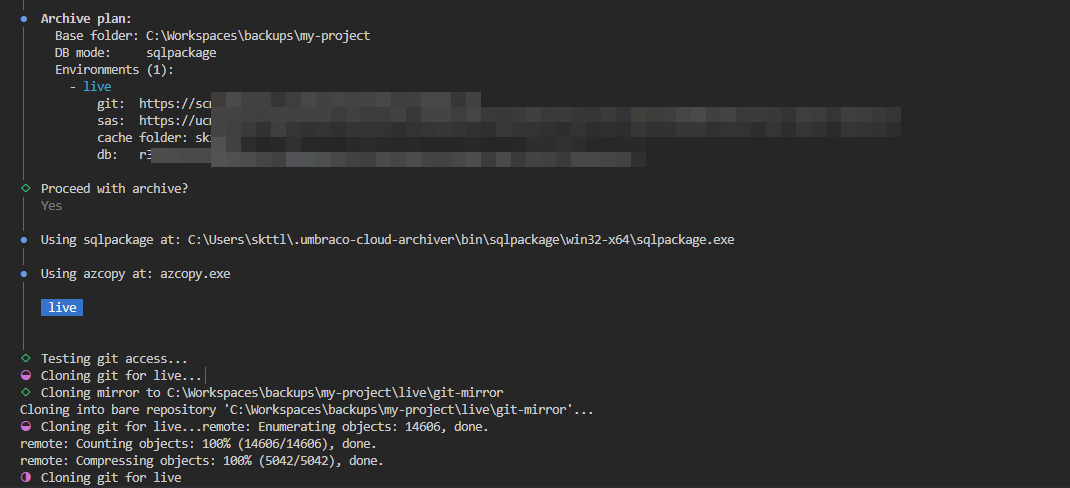
What you end up with
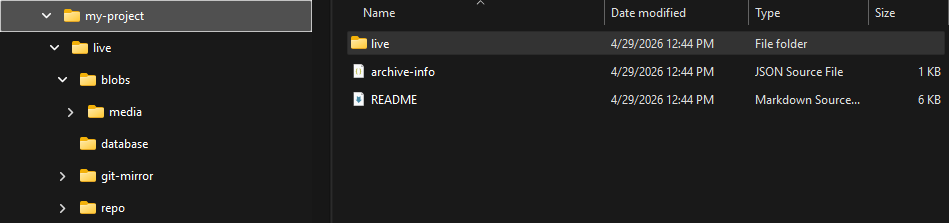
<base>/
  live/
    git-mirror/       # bare clone, full history
    repo/             # working copy (browseable)
    blobs/            # blob storage contents
    database/
      <dbname>.bacpac           # if sqlpackage was used
      MANUAL_BACKUP_REQUIRED.txt  # otherwise
  stage/
    ...
  archive-info.json   # metadata about this run
A self-contained snapshot of the whole project that you can zip up, drop on a NAS, hand to the client, or just keep around in cold storage.
Prerequisites
- Node.js 20+
- git in your PATH
- A container-level SAS URL per environment (Umbraco Cloud → environment → Storage)
- For DB export: SQL Server credentials with permission to export, or grab the backup manually from the Cloud portal
Final thoughts
This started as a one-off script for a single client shutdown, but it solved the problem cleanly enough that I figured I’d polish it up and share it. If you’re about to retire an old Umbraco Cloud project - whether because of an upgrade, a migration, or a project ending - give it a try and let me know how it goes.
Source, issues and PRs are on GitHub: skttl/umbraco-cloud-archiver. Feedback very welcome.